
Everything you need to start building with SyndrDB
Install the SyndrDB database server, the Flame Box IDE, or both.
The core database engine. Build from source and start serving queries in minutes.
Install SyndrDBThe desktop client for SyndrDB. Download the installer for your platform and connect.
Install Flame BoxSyndrDB is written in pure Go. You'll need Go installed to build from source.
# Verify your Go installation
go version
# Should output: go version go1.21+ ...
Required to clone the repository.
git clone https://github.com/dan-strohschein/SyndrDB.git
cd SyndrDB
# Build (creates bin/server/server)
./build.sh

# Build and run tests
./build.sh test
# Start with defaults (TCP on port 1776)
./bin/server/server

# Or customize your configuration
./bin/server/server -datadir=./my_data -port=1776 -graphql
Once the server is running, connect using Flame Box or any TCP client on port 1776.
-- Create a database
CREATE DATABASE "MyFirstDB";

-- Create a bundle (like a table)
CREATE BUNDLE "users"
WITH FIELDS (
    {"name", STRING, true, false, ""},
    {"email", STRING, true, true, ""}
);

-- Add a document
ADD DOCUMENT TO BUNDLE "users"
WITH (
    {"name" = "Alice"},
    {"email" = "alice@example.com"}
);

-- Query it back
SELECT * FROM "users";
That's it! SyndrDB is running and ready for connections.
| Flag | Default | Description |
|---|---|---|
-port |
1776 | TCP port for SyndrQL connections |
-datadir |
./data | Directory for database storage |
-graphql |
false | Enable the GraphQL interface |
-graphql-port |
8080 | Port for GraphQL HTTP endpoint |
-log-level |
info | Logging verbosity (debug, info, warn, error) |
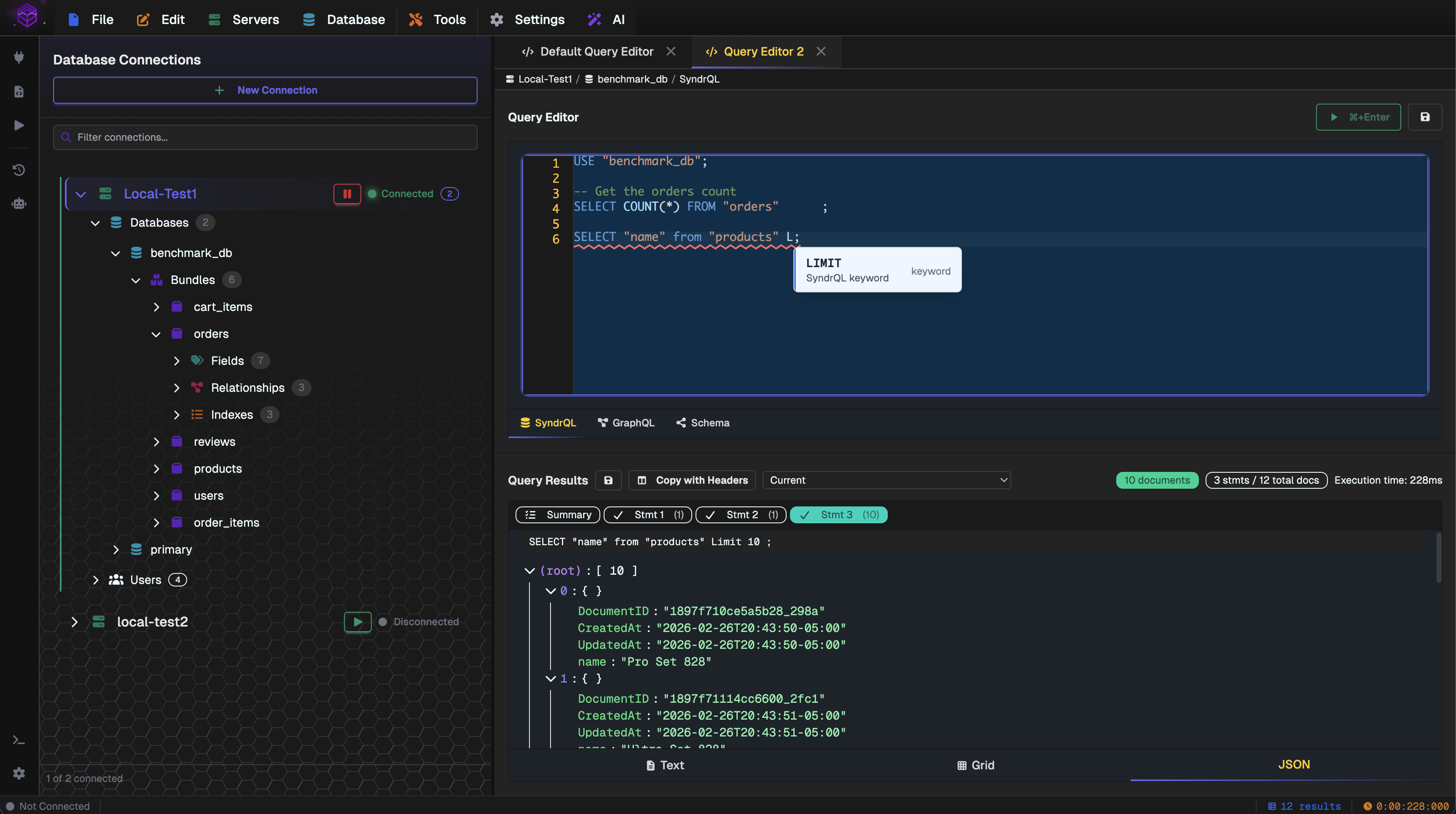
Flame Box is the desktop IDE for SyndrDB. Download the installer for your platform and you're ready to go.
| Platform | Format | Download |
|---|---|---|
| macOS | DMG | Download for macOS |
| Windows | NSIS Installer | Download for Windows |
| Linux | AppImage | Download for Linux |
Open the .dmg file and drag Flame Box to your Applications folder. On first launch, you may need to right-click and select "Open" to bypass Gatekeeper.
Run the installer and follow the prompts. Flame Box will be added to your Start Menu.
Make the AppImage executable and run it:
chmod +x FlameBox-*.AppImage
./FlameBox-*.AppImage
Open Flame Box from your Applications folder, Start Menu, or by running the AppImage.
Click "New Connection" in the Database Connections panel on the left side. Enter your connection details:
| Field | Default Value |
|---|---|
| Connection Name | Local-Test (or any name you prefer) |
| Host | localhost |
| Port | 1776 |
| Username | Your SyndrDB username |
| Password | Your SyndrDB password |
Once connected, you can browse databases in the tree panel, open query tabs, write SyndrQL or GraphQL queries, and view results — all with syntax highlighting and autocomplete.
You're all set! Explore the Flame Box features page for more on what the IDE can do.